


Online visa portals and passport printers check two numbers before accepting a portrait: the physical print size (in millimeters or inches) and the pixel dimensions at 300 DPI or 600 DPI. Check your application instructions, use the table below to convert the required size, then resize your photo locally in the Toolbase Image Resizer.
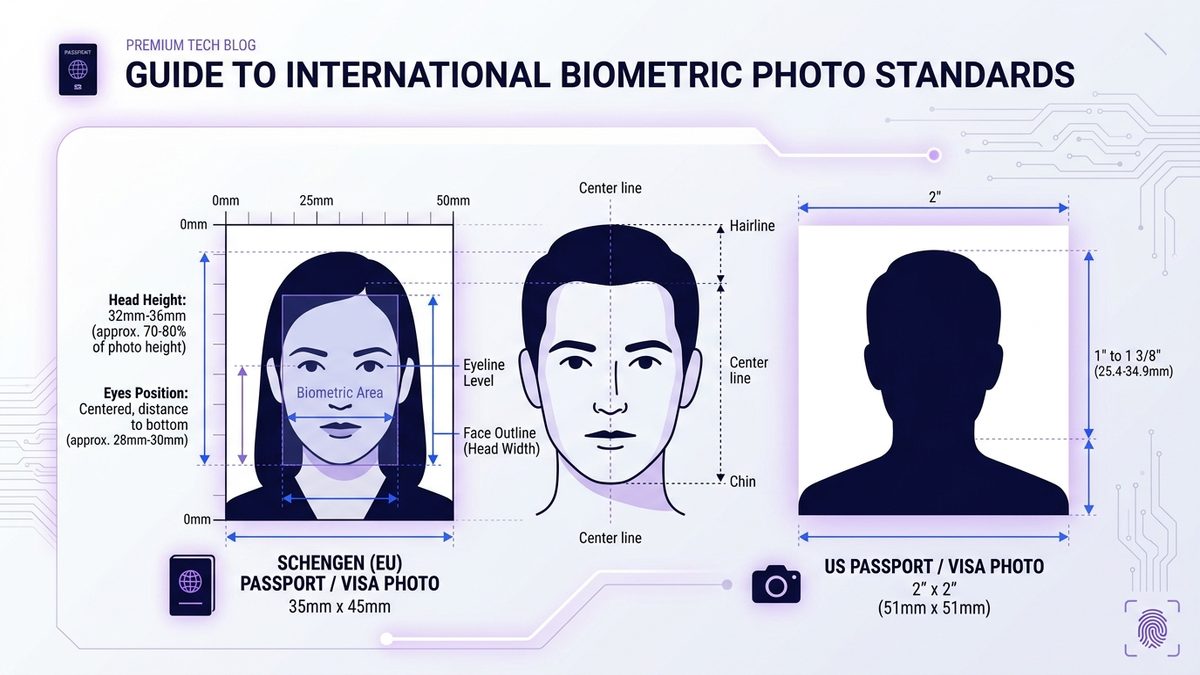
Global Passport & Visa Photo Specifications (2026 Quick Reference)
The table below converts common print dimensions into pixels. It is a sizing reference, not a list of accepted requirements for every passport or visa application. Printed and online submissions can have different rules.
| Print dimensions | 300 DPI | 600 DPI |
|---|---|---|
| 30 × 40 mm | 354 × 472 px | 709 × 945 px |
| 35 × 45 mm | 413 × 531 px | 827 × 1063 px |
| 50 × 70 mm | 591 × 827 px | 1181 × 1654 px |
| 2 × 2 inches (50.8 × 50.8 mm) | 600 × 600 px | 1200 × 1200 px |
Check the application-specific source: the U.S. visa digital-image requirements specify a square image between 600 and 1200 pixels and a JPEG size up to 240 KB. Canadian passport photos use 50 × 70 mm and must be taken by a commercial photographer; those are not the same as Canadian visa photo specifications. Follow the instructions for your application before editing or printing.
How Millimeters Convert to Pixels at 300 DPI and 600 DPI
Because 1 inch equals exactly 25.4 millimeters, the Image Resizer converts physical metric dimensions into digital pixels using:
Pixels = round((Millimeters / 25.4) × DPI)
- 35 × 45 mm at 300 DPI:
round(35 / 25.4 × 300) = 413 pxwide byround(45 / 25.4 × 300) = 531 pxtall. - 35 × 45 mm at 600 DPI:
827 × 1063 px(choose 600 DPI in the tool when printing on high-density photo lab equipment). - 30 × 40 mm (3 × 4 cm) at 300 DPI:
354 × 472 px. - 50 × 50 mm vs. US 2 × 2 Inches (Important): The built-in 5×5 cm — US visa preset converts 50 mm at 300 DPI to 591 × 591 px. A 50 mm square is not the required 2-inch print size. Use 50.8 mm for a 2-inch print, and follow the separate upload specifications. If the digital upload requires 600 × 600 px minimum, select Custom, set Unit to
px (pixels), uncheck Keep aspect ratio, and enter600×600.
Biometric Head-Height and Background Rules
- Crown-to-Chin Ratio: Use the head-size template for the specific application. The same outer photo dimensions do not imply the same head-height rules, and resizing alone cannot correct unsuitable framing.
- Top Margin Buffer: Leave at least 3–5 mm of background above the hair so the crown is never clipped.
- No Eyeglasses or Filters: Remove glasses, keep a neutral mouth-closed expression facing straight ahead, and never apply beauty smoothing filters.
- Uniform Background: Stand 1 meter away from a plain wall to prevent shadows. If your home wall is off-color, clean it first in the Background Remover.
Step-by-Step: Resize a Passport or Visa Photo in Toolbase
We tested a 3000 × 4000 px smartphone portrait in the Image Resizer across two common scenarios:
- For an application requiring 35 × 45 mm: Under Preset, select
3.5×4.5 cm — Visa / Schengen. The tool automatically switches Unit tomm(35×45), sets 300 DPI, unchecks Keep aspect ratio, and selects Crop to fill (center). The live preview outputs 413 × 531 px. - For a digital upload requiring 600 × 600 px: Keep Preset on
Custom, set Unit topx (pixels), uncheck Keep aspect ratio, enter600Width and600Height, and keep Fit method on Crop to fill (center). The output is an exact 600 × 600 px square. - Download & Check File Weight: Choose JPG as the output format and click Download. Everything runs in your browser memory without uploading your face to a server.
Tool Limitations to Keep in Mind
- Center-Only Automatic Crop: Crop to fill (center) trims overflow symmetrically around the center of the image. It does not run biometric face detection. If your head is off-center or too small in the original photo, crop around your head and shoulders manually first using the Image Cropper, then resize to exact pixel or millimeter dimensions.
- Portal File-Size Caps (e.g., 240 KB): Resizing sets pixel dimensions, while byte size depends on JPEG complexity. If an online portal requires a file under 240 KB, run the resized JPG through the Image Compressor.
Frequently Asked Questions
Can I take my passport photo with my smartphone?
Some applications allow a photograph taken with a phone; others require a professional photographer. Check the official instructions first. Resolution alone does not establish suitability: lighting, pose, background, image alterations and print requirements also matter.
What is the exact pixel size of a 2×2 inch photo at 300 DPI?
A 2×2 inch photo at 300 DPI is 600 × 600 pixels (and 1200 × 1200 pixels at 600 DPI). Note that the metric 5×5 cm preset outputs 591 × 591 px at 300 DPI; enter 600 × 600 in px mode if an online portal enforces a strict 600 px minimum.
Why was my photo rejected for “incorrect head size”?
Head size can fall outside the application’s permitted measurements even when the overall image dimensions are correct. Compare your original photograph with the official head-size template; if the photograph cannot meet it, retake it rather than stretching the face.
Should I choose «Crop to fill (center)» or «Fit inside with white margins»?
«Crop to fill (center)» avoids adding margins, but can cut off the head if the source framing is unsuitable. Inspect the crop and follow the application’s rules. «Fit inside with white margins» adds bars when aspect ratios differ; it is useful for general layouts, but may not meet a photo submission’s rules. For a detailed comparison, see Cover vs. Contain in Image Resizing.